How to Switch CRMs Without Losing Your Customer List
How to switch CRMs without losing a customer: export everything first, keep a clean CSV, import it, keep the old system read-only and keep the tax records.
The MakeHay team · · 11 min read
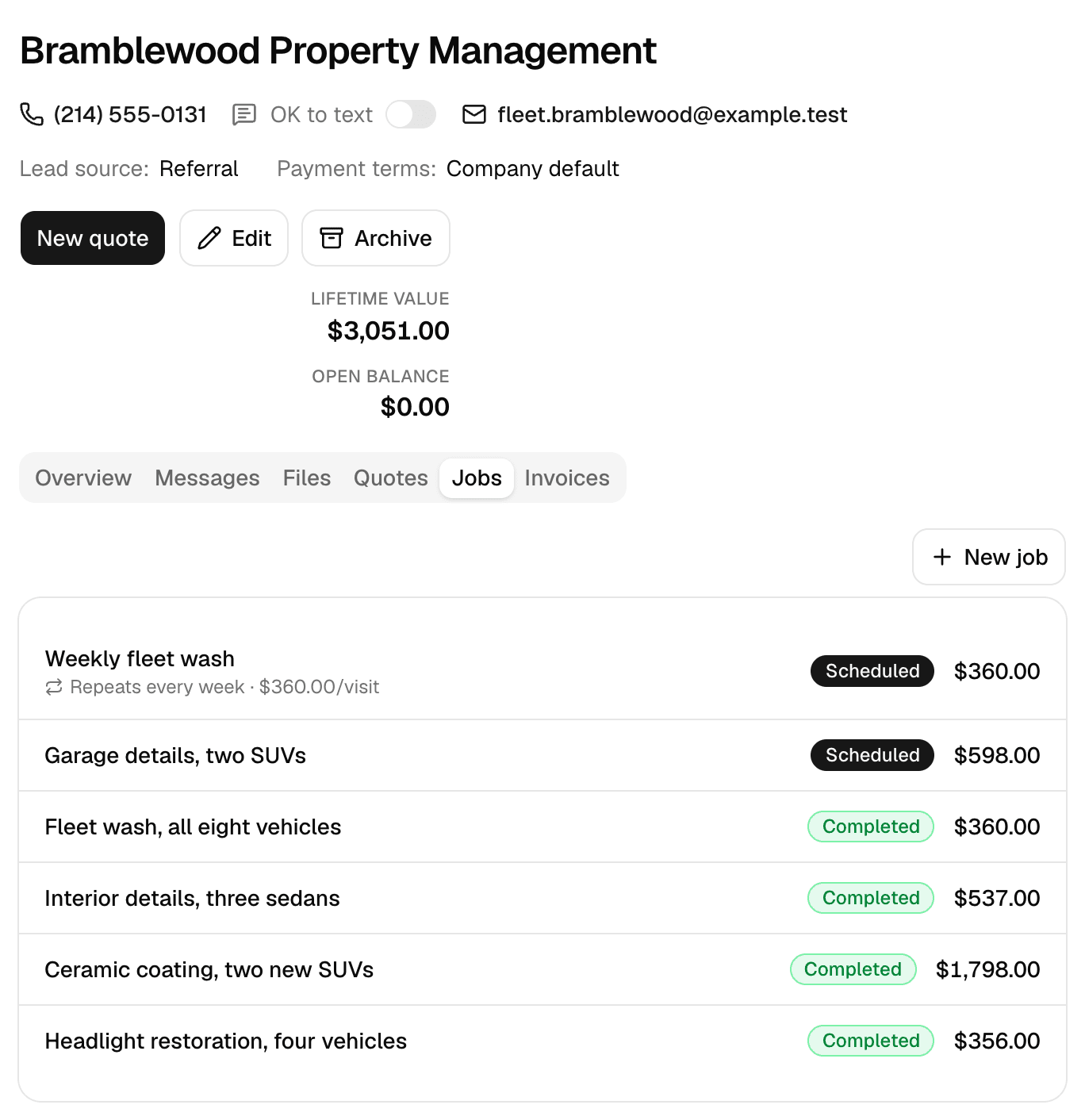
Switching CRMs loses customer lists in predictable ways: the export was never run, the file dropped the phone numbers, four job sites came over as four customers, or the old account was closed before anyone counted the rows. All of it is avoidable: export everything, clean the list once in a spreadsheet, import it, and keep the old system open to read until the new one has collected a full round of invoices.
What actually gets lost in a CRM switch
Three things go missing, and the list of names is the least of them. Data that was never exported because the account was canceled first. Structure: a customer with four lots exported as four customers, or every address jammed into one notes column. History: quotes, invoices and payment records that live only in the old system. The structure and the history are what you plan for.
Export customer data from a CRM before you cancel anything
Run every export the old system offers while the account is still open and paid. Start with the files no other source can replace.
- Customers and contacts: name, company, phone, email, billing address, notes and lead source. If contacts are kept separately, export both.
- Job sites: the service address for each customer, with its label and access notes such as a gate code.
- Quotes: number, date, customer, site, line items, total and status. Open quotes matter most; you will re-send them.
- Invoices and payments: number, date, due date, total, amount paid, payment date and method. These are tax records.
- Files: signed contracts, customer documents, before and after photos, if the system lets you download them in bulk.
Save each export with the date in the file name, in a folder that is backed up. Then open every file and check its row count against what the old system shows. A cut-off export looks complete until you count.
Tip: If the customer list lives in your phone, Google Contacts exports it too: select the contacts, open More actions, choose Export and pick Google CSV for a backup.
What is a CSV file, and which columns to keep?
A CSV (comma-separated values) file is plain text. Each line is one record, fields are separated by commas, and the first line can hold the column names. A field that contains a comma, a line break or a double quote is wrapped in double quotes, and a double quote inside it is written twice. Every line should carry the same number of fields. That is the whole format as the IETF standard describes it, which is why a spreadsheet, a contacts app and a CRM can all read the same file.
What a CSV cannot hold matters too. When Excel saves a workbook as CSV, Microsoft's own help says a dialog reminds you that only the current worksheet goes into the new file, and an alert warns that some features might be lost in the format. Leading zeros can vanish when a spreadsheet opens a CSV and treats a ZIP code as a number, which is why Excel's text import wizard can convert a column with leading zeros to text to preserve them.
The columns an import needs
Keep the columns that identify the customer and locate the work, and rename the headers so they say what they hold. Everything else is noise to the new system.
| Column | Keep it? | Why |
|---|---|---|
| Customer or company name | Always | Groups rows into one customer |
| Contact name | When it differs from the customer | The person you call |
| Yes | Where quotes and invoices go | |
| Phone | Yes, as text | Keeps leading zeros |
| Job site label | Optional | Main lot, Building B |
| Street, city, state and ZIP | Each in its own column | One combined field cannot be matched |
| Notes and lead source | Yes | Gate codes, where they came from |
| Internal IDs, tags, statuses | Drop | Meaningless in the new system |
Clean your customer list before you import it
Clean in the spreadsheet, once, before the import. A duplicate fixed in the file is fixed everywhere; one fixed after the import is a merge nobody has time for in season.
- Step 1: Pick one spelling per customer. Sort by name and look for Smith Property Mgmt next to Smith Property Management. Choose one and apply it to every row.
- Step 2: Make it one row per job site: a customer with three lots gets three rows with the same name and a different address on each.
- Step 3: Split the address into street, city, state and ZIP columns. A text-to-columns tool does most of it; check rows with a suite number by hand.
- Step 4: Format the phone and ZIP columns as text so leading zeros survive the save.
- Step 5: Check the emails. A missing @ sign or a trailing space is an invoice that never arrives.
- Step 6: Delete what you no longer need: test entries, leads that never answered, customers who moved away years ago. The FTC's guide for business says to keep only the personal information you need for your business and to properly dispose of what you no longer need.
- Step 7: Save as CSV, open the saved file, and count the rows once more.
Import customers into a new CRM in one pass
A good import tool reads your headers, guesses which column is which, shows a preview and reports what it skipped. Read that report: a skipped row is cheaper to fix now than to find when an invoice goes to the wrong address.
In MakeHay, Customers › Import reads a CSV and creates customers, contacts and job sites in one pass, up to 2,000 rows at a time. It guesses each column from your headers and you can change any guess; Customer / company name has to be matched, or the contact's name columns are used instead. Rows with the same customer name become one customer with several sites, a name matching a customer you already have adds to that customer instead of a duplicate, and a site needs a street, city, state and ZIP or the customer comes in without it. Skipped rows are listed with their row number and the reason, and Download the template on the import page gives you the headers.
Import a small file first: a handful of rows that cover the awkward cases, a customer with several sites, a business with a separate contact, a row with no email. Check how each landed, fix the file, then import the rest. Each customer record then holds contacts, job sites, history and balance in one place, and a customer you no longer work with can be archived without losing their records.
Keep the old CRM read-only until the first invoices clear
Do not cancel the old system the day the import finishes. Downgrade it if you can, stop entering anything new, and keep it open for looking things up. The first weeks on a new system turn up questions only the old one can answer: what was quoted last spring, which invoice today's check belongs to, what the gate code was at the plaza.
Set one rule and a date: from that day, every new quote, job and invoice goes in the new system and nothing goes in the old. A date on the wall beats a drift where half the crew still works from the old calendar.
Close the old account once the new system has sent a full round of invoices and recorded the payments on them, and once the exports you kept have been opened and checked once more. Before closing, download anything the account still holds that is not in your files. After closing, treat the old vendor's copy as gone. The FTC's guide for business says to put your security expectations in writing in contracts with service providers and to insist that they notify you of any security incidents, worth a read before you ask the old vendor to delete your account.
What to tell customers when you change software
For the customer, nothing changes except the look of the next invoice and the address it arrives from. Say exactly that, in one line on the next invoice or in a short email to the customers you bill monthly: same business, same phone, invoices now come from a new address, add it to your contacts so nothing lands in spam.
- Customers on recurring work: tell them before the first invoice from the new system, and confirm the amount and date have not changed.
- Customers with a saved card or bank account: expect a stored payment method to stay behind in the old system, so they set it up again the first time they pay. Say so up front, not after a missed payment.
- Open quotes: re-send any quote still waiting for an answer from the new system, so the approval link works.
- Everyone else: nothing. The next invoice says what it needs to say.
Keep the tax records that outlive the software
Customer records are also tax records. The IRS lists invoices, receipt books and deposit information among the documents that support gross receipts, accepts any recordkeeping system that clearly shows income and expenses, and applies the same requirements to electronic records as to paper.
How long: generally, the records that support an item of income, deduction or credit on a return stay until the period of limitations for that return runs out. That is 3 years in the usual case, 6 years when income that should have been reported was left off by more than 25 percent of the gross income shown, 7 years for a loss from worthless securities or a bad debt deduction, and at least 4 years for employment tax records after the tax becomes due or is paid, whichever is later.
So the invoices and payments export from the old system is not optional. Keep it where the business's other tax records live, and check that the new system can export the same for the years ahead. In MakeHay, reports export payments and quotes to a spreadsheet by period.
Good to know: This is general information, not tax or legal advice. Rules change; read the current IRS pages and ask an accountant before you rely on them.
FAQ
How long to keep customer records from the old CRM?
As long as the tax records they support. The IRS generally wants the records behind a return kept until its period of limitations runs out: 3 years in the usual case, 6 years when income was left off by more than 25 percent of gross income, 7 years for a bad debt deduction, at least 4 years for employment tax records. Keep the invoices and payments export at least that long.
Can quotes and invoices be imported, or only customers?
Check what the new system's importer takes; many take customers, contacts and job sites, not documents. Keep the quotes and invoices export as files, re-send open quotes from the new system, and record an unpaid balance as a new invoice there. MakeHay's importer creates customers, contacts and job sites; old quotes and invoices stay in your exported files.
What if the old CRM has no export button?
Look for a report that downloads as a spreadsheet, or a list screen that can be selected and pasted into one. Failing that, the contacts in your phone export as a CSV from Google Contacts, and your accounting records hold the invoices. Ask the vendor's support in writing for a full export before closing the account.
Should the list be cleaned before or after the import?
Before, in the spreadsheet. Duplicates, split addresses and bad emails take a sort and a find-and-replace in a file, and an edit per customer once they are in a system. Save as CSV, reopen it, count the rows, and import a handful of awkward rows first.
Sources
- How long to keep records (Internal Revenue Service) · States that records supporting an item of income, deduction or credit on a return must generally be kept until the period of limitations for that return runs out; keep records for 3 years if the later situations do not apply, 6 years if income that should have been reported was not reported and it is more than 25% of the gross income shown on the return, 7 years for a claim of a loss from worthless securities or a bad debt deduction, and employment tax records for at least 4 years after the date the tax becomes due or is paid, whichever is later; page last reviewed or updated 30-Jun-2026. (accessed October 17, 2026)
- What kind of records to keep (Internal Revenue Service) · States that any recordkeeping system suited to the business that clearly shows income and expenses may be used; lists invoices, receipt books, deposit information, cash register tapes and Forms 1099-MISC as supporting documents for gross receipts; states that all requirements that apply to hard copy books and records also apply to electronic records. (accessed October 17, 2026)
- RFC 4180: Common Format and MIME Type for Comma-Separated Values (CSV) Files (IETF Datatracker, October 2005) · Defines the CSV format: each record on its own line, fields separated by commas, an optional header line of field names, fields containing commas, line breaks or double quotes enclosed in double quotes, a double quote inside a quoted field written as two double quotes, each line containing the same number of fields; registers the text/csv media type. (accessed October 17, 2026)
- Import or export text (.txt or .csv) files (Microsoft Support, Excel) · States that when saving as CSV a dialog box appears reminding you that only the current worksheet will be saved to the new file, and that an alert below the ribbon may say some features might be lost if you save the workbook in a CSV format; states that the Text Import Wizard can convert a column of numbers that contains leading zeros to text so you can preserve the leading zeros. (accessed October 17, 2026)
- Protecting Personal Information: A Guide for Business (Federal Trade Commission) · Five principles: take stock (know what personal information you have), scale down (keep only what you need for your business), lock it (protect the information you keep), pitch it (properly dispose of what you no longer need), plan ahead (create a plan to respond to security incidents); states that if you don't have a legitimate business need for sensitive personally identifying information, don't keep it; says to put your security expectations in writing in contracts with service providers and to insist that they notify you of any security incidents they experience. (accessed October 17, 2026)
- Export, back up, or restore contacts (Google Contacts Help) · Steps to export on a computer: open Google Contacts, tick the contacts' checkboxes (tick any, then Selection Actions, then All, for all of them), open More actions at the top right and choose Export, select Google CSV to back up your contacts, then click Export; the page says contacts can be downloaded as a CSV or vCard file; page undated. (accessed October 17, 2026)